

Reference implementation
Browse the full push-notification sample (Flutter + native Android glue) to diff or copy files.
The steps below refer to the folder names inside the sample repo (for example
lib/notifications,
android/app/src/main/kotlin/com/cometchat/sampleapp/flutter/android/MainActivity.kt, or
android/app/src/main/AndroidManifest.xml).
Copy the same structure into your project and only change identifiers (applicationId/package name, provider IDs) to match your app.
Architecture map
| Sample path | Role inside the app | What to copy/replicate |
|---|---|---|
lib/notifications | Models, platform services, FCM helpers, CallKit-style handlers | Copy the directory as-is when starting a new app; keep folder names so imports resolve. |
lib/main.dart | Initializes Firebase + local notifications, caches NotificationLaunchHandler, defines the callMain entrypoint for lock-screen calls | Reuse the launch sequence so notification taps from a terminated state reach Flutter before runApp. |
lib/dashboard.dart / lib/guard_screen.dart | Boots CometChat UI Kit, requests permissions, registers Call/Notification listeners | Mirror the lifecycle hooks to initialize FirebaseService only once and capture pending notification taps. |
lib/notifications/services/android_notification_service/firebase_services.dart | FCM init, background handler, token registration via PNRegistry, and CallKit event bridge | Keep the background handler at top level and ensure provider IDs are set before registering tokens. |
android/app/src/main | Manifest permissions, MethodChannel glue in MainActivity.kt, lock-screen CallActivity, and CallActionReceiver for accept/decline intents | Start from the sample files, then update applicationId, channel names, and icons to match your app. |
1. Prerequisites
- Firebase project with an Android app configured (package name matches your
applicationId) and Cloud Messaging enabled;google-services.jsoninsideandroid/app. - CometChat app credentials (App ID, Region, Auth Key) plus Push Notification extension enabled with an FCM provider created for Flutter Android.
- Flutter 3.24+ / Dart 3+, the latest CometChat UI Kit (
cometchat_chat_uikit) and Calls UI Kit (cometchat_calls_uikit) packages. - Physical Android device for testing—full-screen call notifications and background delivery are unreliable on emulators.
2. Prepare credentials before coding
2.1 Firebase Console
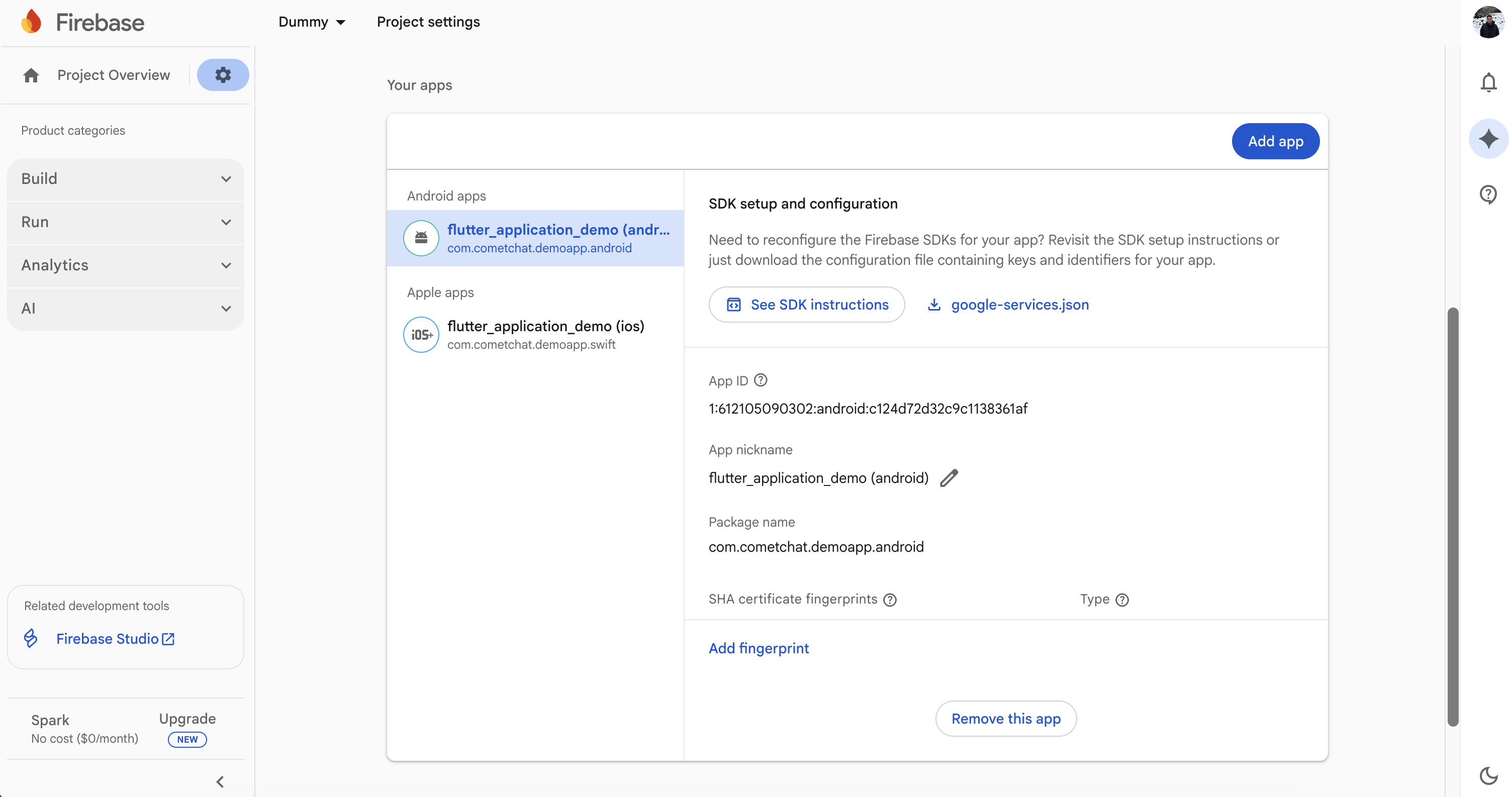
- Register your Android package name (the same as
applicationIdinandroid/app/build.gradle) and downloadgoogle-services.jsonintoandroid/app. - Enable Cloud Messaging and copy the Server key if you want to send test messages manually.
2.2 CometChat dashboard
- Turn on the Push Notifications extension (V2).
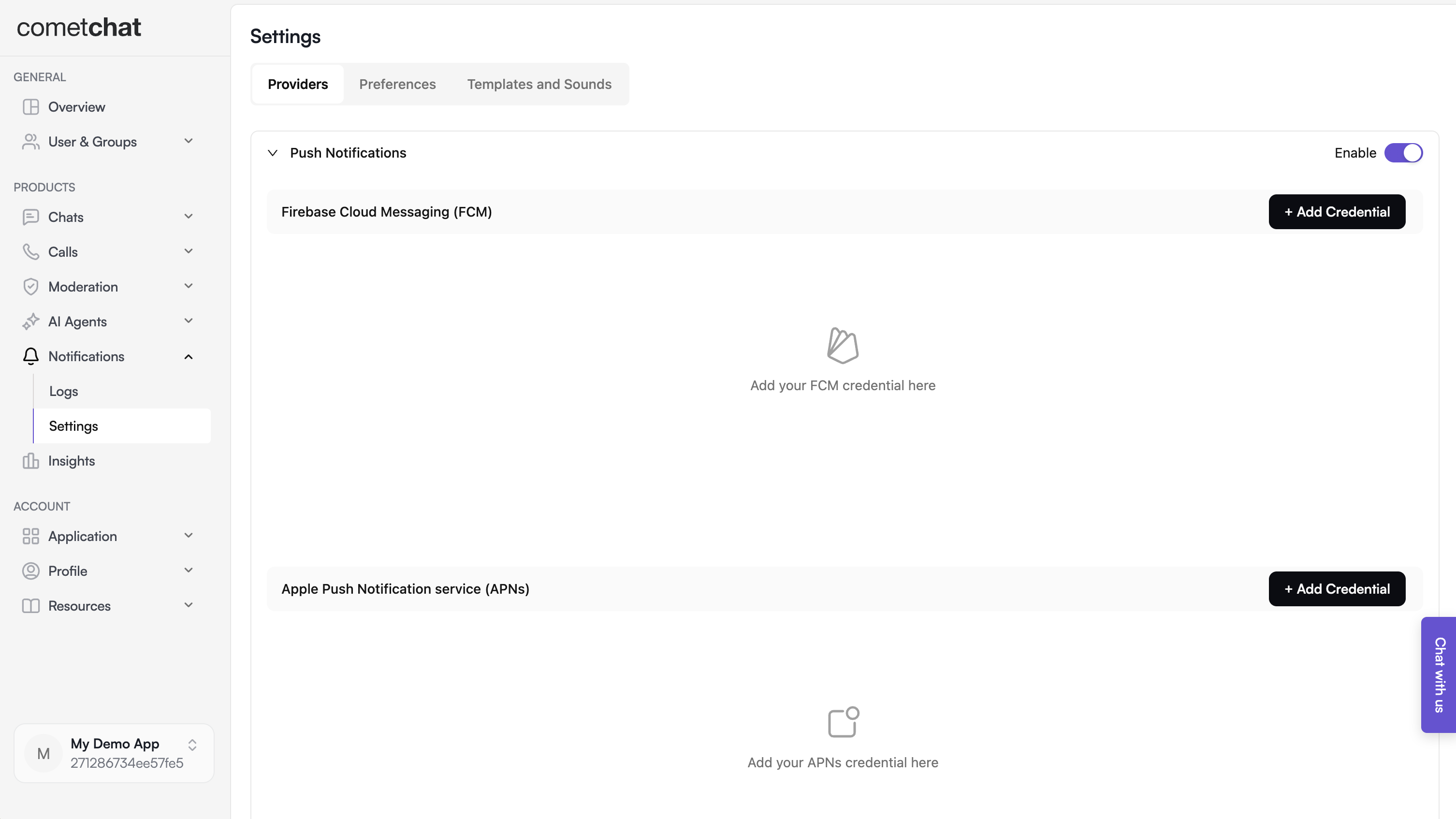
- Create an FCM provider for Flutter Android and copy the generated provider ID.

2.3 Local configuration file
Updatelib/app_credentials.dart so it exposes your credentials and provider IDs:
SharedPreferences; saveAppSettingsToNative() passes them to Android so CallActionReceiver can reject calls even if Flutter is not running.
3. Bring the notification stack into Flutter
3.1 Copy lib/notifications
- Clone or download the sample once.
- Copy the entire
lib/notificationsdirectory (models, Android/iOS services, helpers) into your app. - Update the import prefixes (for example replace
package:sample_app_push_notifications/...with your own package name). Keeping the same folder names avoids manual refactors later.
3.2 Wire the entry points
lib/main.dart
- Initialize
SharedPreferencesClass,FlutterLocalNotificationsPlugin, and Firebase before callingrunApp. - Cache
NotificationLaunchHandler.pendingNotificationResponsewhen the app is launched from a tapped notification while terminated. - Keep the
callMainentrypoint;CallActivityuses it to render the ongoing-call UI over the lock screen.
lib/guard_screen.dart / lib/dashboard.dart (or your first screen after login)
- Ensure
CometChatUIKit.init()andCometChatUIKit.login()finish before rendering the dashboard. - On Android, instantiate
FirebaseServiceand callnotificationService.init(context)once; on iOS, keepAPNSService. - Replay
NotificationLaunchHandler.pendingNotificationResponseafter the widget tree builds so taps from a killed app still navigate toMessagesScreen. - Forward lifecycle changes to
IncomingCallOverlay/BoolSingletonto hide stale overlays when the app resumes. VoipNotificationHandler.handleNativeCallIntent(context)runs after the first frame to act on accept/decline actions that were tapped from the Android notification before Flutter started.
3.3 Align dependencies and configuration
Mirror the samplepubspec.yaml versions (update as needed when newer releases ship):
flutter pub get, then flutterfire configure if you still need to generate firebase_options.dart.
4. Configure the native Android layer
4.1 Gradle + Firebase
- Add
google-services.jsontoandroid/app. - Ensure
android/app/build.gradleapplies the plugins used in the sample:
applicationId to your package name and keep minSdk 24 or higher. compileSdk 36 / targetSdk 35 match the sample but can be raised if your project already targets a newer API.
4.2 Manifest permissions and components
Use the sampleAndroidManifest.xml as a baseline:
- Permissions for notifications, audio/video, and lock-screen call UI:
POST_NOTIFICATIONS,RECORD_AUDIO,CAMERA,FOREGROUND_SERVICE,USE_FULL_SCREEN_INTENT,WAKE_LOCK,SHOW_WHEN_LOCKED,TURN_SCREEN_ON, andSYSTEM_ALERT_WINDOW. MainActivityuseslaunchMode="singleTask"withandroid:showWhenLocked="true"/android:turnScreenOn="true"so incoming calls can wake the screen.CallActivityis a dedicated entrypoint (usescallMain) to render the ongoing call over the lock screen and is excluded from recents.CallActionReceiverlistens toflutter_callkit_incomingactions (and mirrored app-specific actions) so Accept/Decline from the native notification reach Flutter.- Set
default_notification_iconmeta-data to your icon if you change the launcher asset.
4.3 Kotlin bridge for call intents
MainActivity.ktexposes aMethodChannel("com.cometchat.sampleapp")that supports:get_initial_call_intent– read and clear any call intent extras soVoipNotificationHandler.handleNativeCallIntentin Dart can react after Flutter launches.setupLockScreenForCall/restoreLockScreenAfterCall– temporarily bypass and then restore the lock screen when a call is accepted.saveAppSettings– stores your App ID and Region for the broadcast receiver.
CallActionReceiver.ktwakes the app for Accept/Decline actions. On decline, it can initialize the CometChat SDK headlessly (using the saved App ID/Region) to reject the call as busy even if Flutter is not running.CallActivity.ktoverridesgetDartEntrypointFunctionNametocallMain, letting the ongoing-call UI render in its own activity with lock-screen flags.
voipPlatformChannel inside lib/notifications/services/save_settings_to_native.dart to match.
5. Token registration and runtime events
5.1 FCM tokens
FirebaseService.init requests notification permission, sets the background handler (firebaseMessagingBackgroundHandler), and registers tokens:
PNRegistry pulls the provider ID from AppCredentials.fcmProviderId. Call this only after CometChatUIKit.login succeeds.
5.2 Local notifications and navigation
LocalNotificationService.showNotificationrenders a high-priority local notification when the incoming CometChat message does not belong to the currently open conversation.NotificationLaunchHandler.pendingNotificationResponsecaches taps triggered while the app is terminated;dashboard.dartreplays it after navigation is ready.LocalNotificationService.handleNotificationTapfetches the user/group and pushesMessagesScreenwhen a notification is tapped from foreground, background, or terminated states.
5.3 Call events (VoIP-like pushes)
- The top-level
firebaseMessagingBackgroundHandlershows the incoming-call UI by callingVoipNotificationHandler.displayIncomingCall, which usesflutter_callkit_incomingto render a full-screen notification. FirebaseService.initializeCallKitListenersbindsFlutterCallkitIncoming.onEventso Accept/Decline/Timeout actions map toVoipNotificationHandler.acceptVoipCall,declineVoipCall, orendCall.VoipNotificationHandler.handleNativeCallIntentreads Accept/Decline extras passed fromCallActionReceivervia the MethodChannel if the user acted before Flutter started.saveAppSettingsToNative()runs duringFirebaseService.initto persist App ID/Region for the native receiver; keep it in place orCallActionReceivercannot initialize CometChat when rejecting a call from the lock screen.
6. Testing checklist
- Run on a physical Android device. Grant notification, microphone, and camera permissions when prompted (Android 13+ requires
POST_NOTIFICATIONS). - From the CometChat Dashboard, send a standard message notification. Verify:
- Foreground: a local notification banner shows (unless you are in that chat).
- Background: FCM notification appears; tapping opens the right conversation.
- Force-quit the app, send another message push, tap it, and confirm
NotificationLaunchHandlerlaunchesMessagesScreen. - Trigger an incoming CometChat call. Ensure:
- The full-screen call UI shows caller name/type with Accept/Decline.
- Accepting on the lock screen notifies Flutter (
handleNativeCallIntent), starts the call session, and dismisses the native UI when the call ends. - Declining from the notification triggers
CallActionReceiverto reject the call server-side.
- Rotate through Wi-Fi/cellular and reinstall the app to confirm token registration works after refresh events.
7. Troubleshooting tips
| Symptom | Quick checks |
|---|---|
| No notifications received | Confirm google-services.json is in android/app, the package name matches Firebase, and notification permission is granted (Android 13+). |
| Token registration errors | Double-check AppCredentials.fcmProviderId and that PNRegistry.registerPNService runs after login. |
| Call actions never reach Flutter | Ensure CallActionReceiver is declared in the manifest, MethodChannel names match voipPlatformChannel, and VoipNotificationHandler.handleNativeCallIntent is called from dashboard.dart. |
| Full-screen call UI not showing | Verify USE_FULL_SCREEN_INTENT, WAKE_LOCK, and SHOW_WHEN_LOCKED permissions plus android:showWhenLocked="true" / android:turnScreenOn="true" on MainActivity and CallActivity. |
| Tapping notification from killed app does nothing | Keep the NotificationLaunchHandler logic in main.dart and replay it after the navigator key is ready (post-frame callback). |