

ConnectionService. Follow this guide to mirror that implementation in any Android app that uses CometChat UI Kit and Calls SDK.
Reference implementation
Browse the Kotlin push-notification sample (UI Kit + Calls + VoIP/ConnectionService).
Folder names in this guide match the sample repo (for example
src/main/java/com/cometchat/sampleapp/kotlin/fcm,
src/main/AndroidManifest.xml, or
build.gradle).
Copy the same structure into your app and only change identifiers (applicationId, package names, provider IDs) to match your project.
Architecture map
| Sample path | Role | What to copy/replicate |
|---|---|---|
src/main/java/com/cometchat/sampleapp/kotlin/fcm | FCM service, DTOs, notification builder, inline reply broadcast receiver | Copy the package; update package name and constants (AppConstants.FCMConstants.PROVIDER_ID, AppCredentials). |
src/main/java/com/cometchat/sampleapp/kotlin/fcm/voip | ConnectionService wrapper for full-screen incoming-call UI and busy rejection | Keep class names; make sure manifest points to CometChatVoIPConnectionService. |
src/main/java/com/cometchat/sampleapp/kotlin/fcm/utils/MyApplication.kt | Initializes UI Kit, tracks foreground activity, manages call overlays, connects/disconnects websockets | Use this as your Application class; set it in AndroidManifest.xml. |
src/main/AndroidManifest.xml | Permissions, FCM service, broadcast receiver, ConnectionService declaration | Start from the sample manifest; keep the same permissions and services. |
build.gradle | Plugins, Firebase + CometChat dependencies, compile/target SDK levels | Align plugin list, Kotlin JVM target, and dependencies before wiring code. |
1. Prerequisites
- Firebase project with an Android app added (package name matches your
applicationId) and Cloud Messaging enabled; placegoogle-services.jsoninapp/src/mainorapp/per your Gradle setup. - CometChat app credentials (App ID, Region, Auth Key) and the Push Notifications extension enabled. Create an FCM Android provider and copy the provider ID.
- Android Studio Giraffe+ with a physical Android device (minSdk 26 in the sample; ConnectionService requires API 26+).
- Latest CometChat UI Kit + Calls SDK dependencies (see the sample Gradle snippet below) and Google Play Services on the device.
2. Prepare credentials before coding
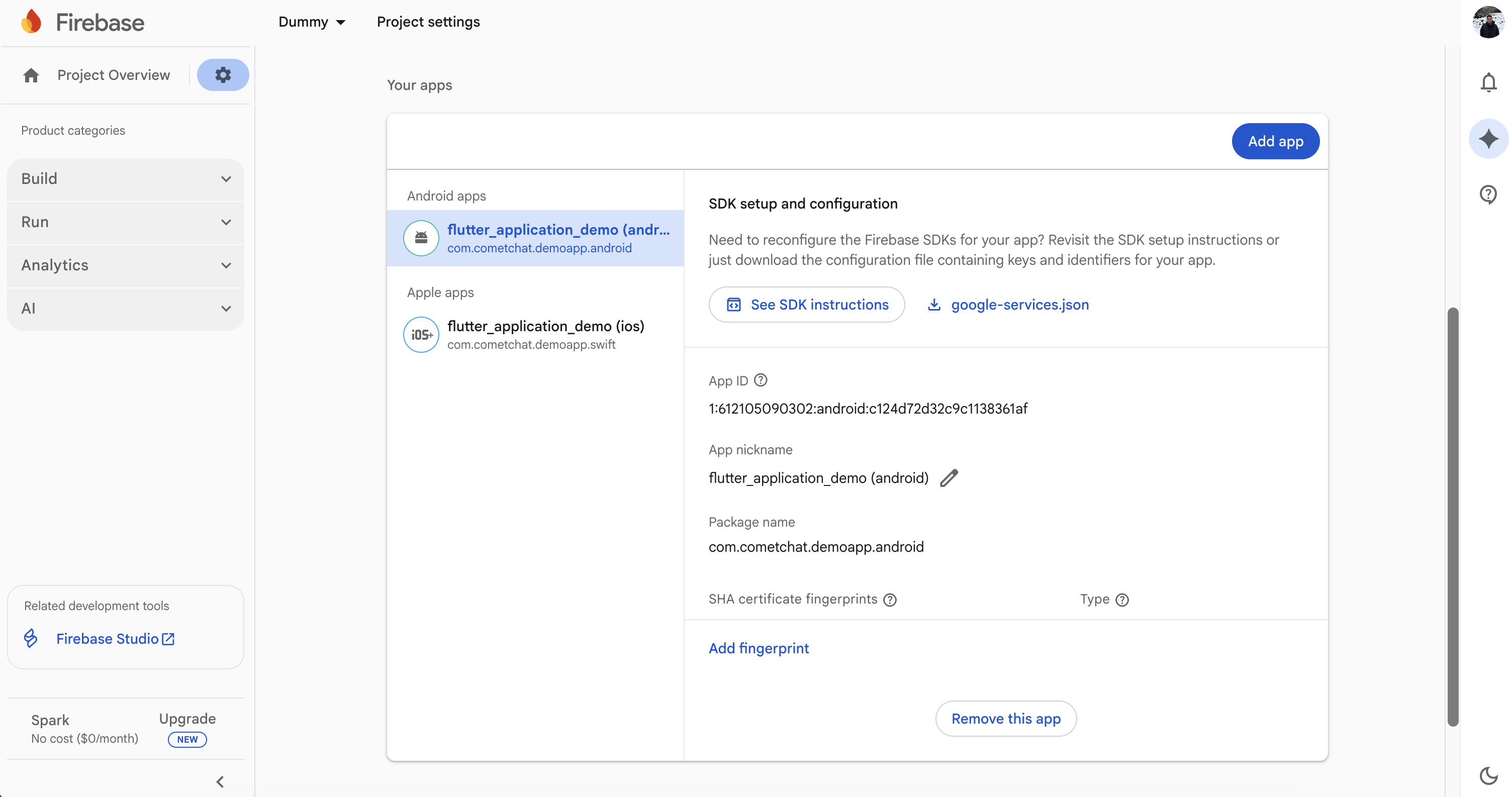
2.1 Firebase Console
- Register your Android package name and download
google-services.jsoninto your module. - Enable Cloud Messaging and keep the Server key handy if you want to send manual test pushes.
2.2 CometChat dashboard
- Turn on the Push Notifications extension (V2).
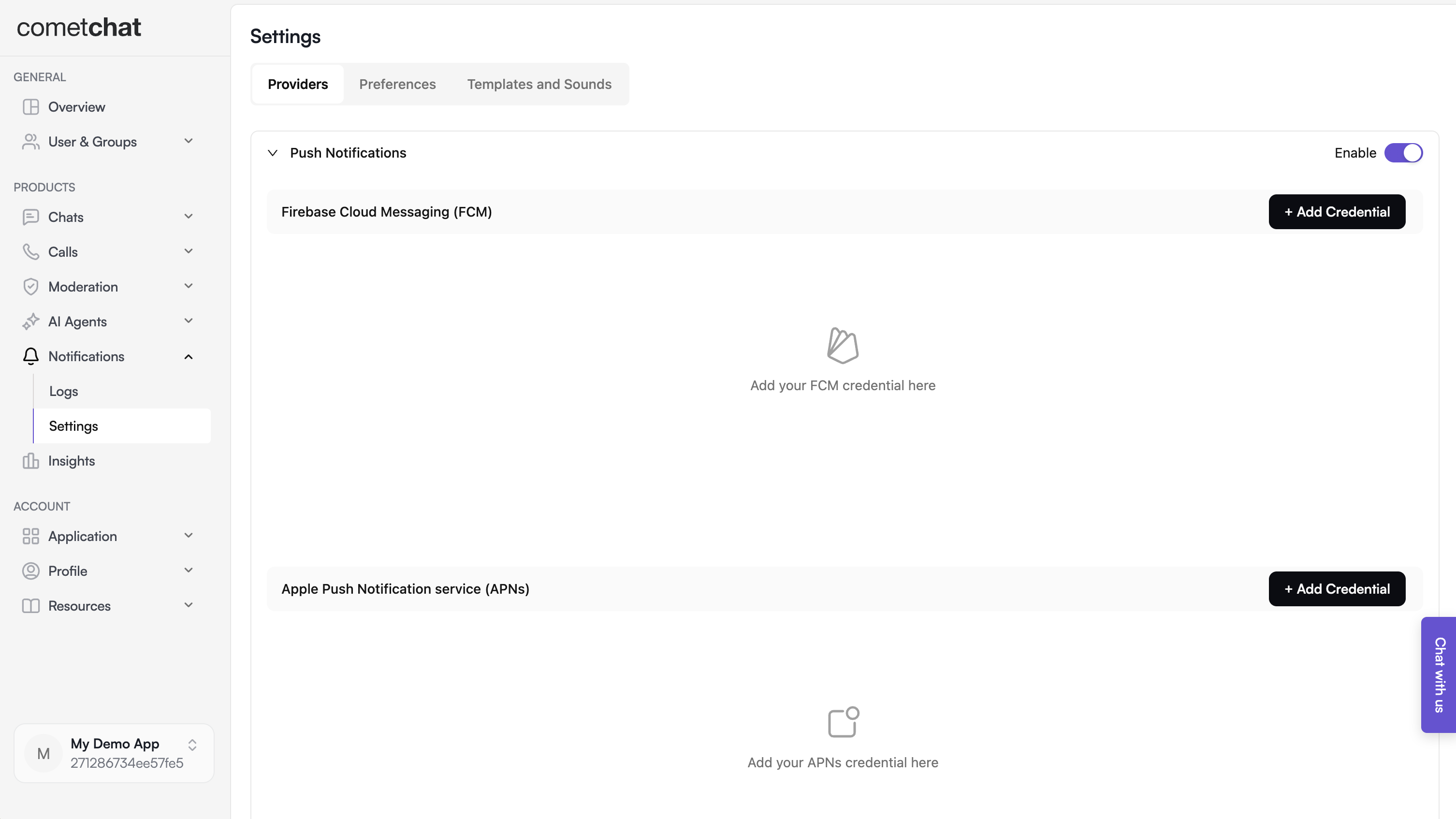
- Create an FCM provider for Android and copy the generated provider ID.

2.3 Local configuration files
AppCredentials.ktshould contain your App ID, Auth Key, and Region.AppConstants.FCMConstants.PROVIDER_IDmust be replaced with the provider ID you created for this app.- Replace launcher icons and app name in
AndroidManifest.xml/resif you fork the sample.
3. Project setup (Gradle + manifest)
3.1 Gradle configuration
Mirror the samplebuild.gradle plugins and dependencies:
- Apply the
google-servicesplugin and placegoogle-services.jsonin the same module as thebuild.gradleabove. - Keep
viewBindingenabled if you copy the UI Kit screens directly from the sample.
3.2 Manifest permissions and components
Start from the sampleAndroidManifest.xml:
- Permissions for notifications and calls:
POST_NOTIFICATIONS,RECORD_AUDIO,CALL_PHONE,MANAGE_OWN_CALLS,ANSWER_PHONE_CALLS,WAKE_LOCK,READ_PHONE_STATE, and media read permissions for attachments. - Set
android:nameon<application>to yourMyApplicationsubclass. - Declare:
com.google.firebase.MESSAGING_EVENTservice:FCMService- Reply receiver:
FCMMessageBroadcastReceiver - VoIP connection service:
CometChatVoIPConnectionServicewithandroid.permission.BIND_TELECOM_CONNECTION_SERVICE.
4. Wire the Kotlin notification stack
4.1 Token registration (after login)
Repository.registerFCMToken fetches the FCM token and registers it with CometChat Push Notifications:
CometChatUIKit.login() succeeds (the sample triggers it during app bootstrap) and keep unregisterPushToken for logout flows.
4.2 Handling message pushes
FCMService.onMessageReceivedinspectsmessage.data["type"].- For
type == "chat"it:- Marks the message as delivered via
CometChat.markAsDelivered. - Skips notifications when the target chat is already open (
MyApplication.currentOpenChatId). - Builds grouped notifications with avatars and BigText via
FCMMessageNotificationUtils, including inline reply actions.
- Marks the message as delivered via
FCMMessageBroadcastReceivercaptures inline replies, initializes the SDK headlessly (SplashViewModel.initUIKit), sends the message, and re-shows the updated notification.
4.3 Navigation from notifications
- Taps on a notification launch
SplashActivitywhich readsNOTIFICATION_PAYLOADextras to decide whether to openMessagesActivitywith the right user/group. MyApplicationkeeps track of the foreground activity, reconnects websockets when the app resumes, and shows a top-of-screen incoming-call snackbar if a call arrives while the UI Kit is open.
4.4 Incoming calls (ConnectionService)
- For
type == "call"pushes,FCMService.handleCallFlowparsesFCMCallDtoand routes to thevoippackage. CometChatVoIPregisters aPhoneAccountand triggersTelecomManager.addNewIncomingCallso Android shows the native full-screen call UI with Accept/Decline.- When the app is already on a call, the sample rejects new calls with a busy status (
Repository.rejectCallWithBusyStatus). - Cancel/timeout pushes (
callAction == cancelled/unanswered) end the active telecom call if the session IDs match.
4.5 Notification UI polish
FCMMessageNotificationUtilsgroups notifications per sender, shows avatars (downloaded on a worker thread), and uses distinct channel IDs for message notifications.- Reply actions use
RemoteInputso users can respond from the shade; messages are re-rendered in the notification after sending. AppConstants.FCMConstantscentralizes channel IDs, group keys, and summary IDs—update these if you already use conflicting channels in your app.
5. Testing checklist
- Install the app on a physical device, grant notification and microphone permissions (Android 13+ requires
POST_NOTIFICATIONS). - Log in and ensure
registerPushTokensucceeds (watch Logcat for the token and success callback). - Send a message push from the CometChat dashboard:
- Foreground: grouped local notification shows unless you are in that conversation.
- Background/terminated: tapping the FCM notification opens the correct conversation.
- Use inline reply from the notification shade; verify the reply is delivered and the notification updates.
- Trigger an incoming call push:
- Native full-screen call UI shows with caller info.
- Accept/Decline actions reach the app; cancel/timeout dismisses the telecom call.
- Rotate network conditions or reinstall the app to confirm token re-registration works.
6. Troubleshooting
| Symptom | Quick checks |
|---|---|
| No notifications received | Confirm google-services.json location, package name match, notification permission granted, and Push Notifications extension enabled with the correct provider ID. |
| Token registration fails | Verify AppConstants.FCMConstants.PROVIDER_ID, ensure registration runs after login, and check Firebase project uses the same package name. |
| Notification taps do nothing | Make sure SplashActivity consumes NOTIFICATION_PAYLOAD extras and that launchMode is not preventing the intent from delivering data. |
| Call UI never shows | Ensure all telecom permissions are declared and granted, CometChatVoIPConnectionService is in the manifest, and the device supports MANAGE_OWN_CALLS. |
| Inline reply crashes | Keep the broadcast receiver registered, and avoid proguard stripping classes used by RemoteInput or FCM. |